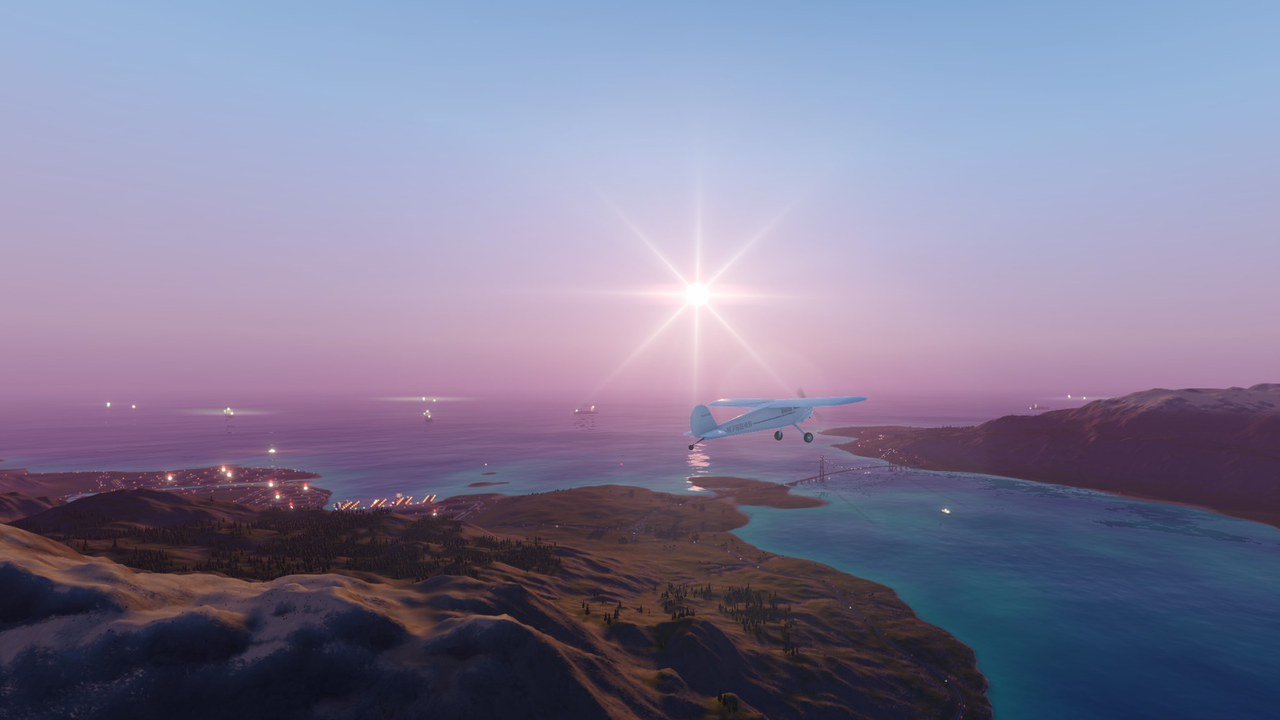
Graphics Plus
Crisp and Cinematic looks: TAA, motion blur, flares and colour grading.
- Version
- Version 0.1.3
- Works with
- SimplePlanes 2 0.7.9
- Updated
- Category
- Graphics & performance
- Online
- Local onlyExperimental: still has bugs in multiplayer
- Needs
- BepInEx 5. The Gravy Mod Menu is recommended.
What it does
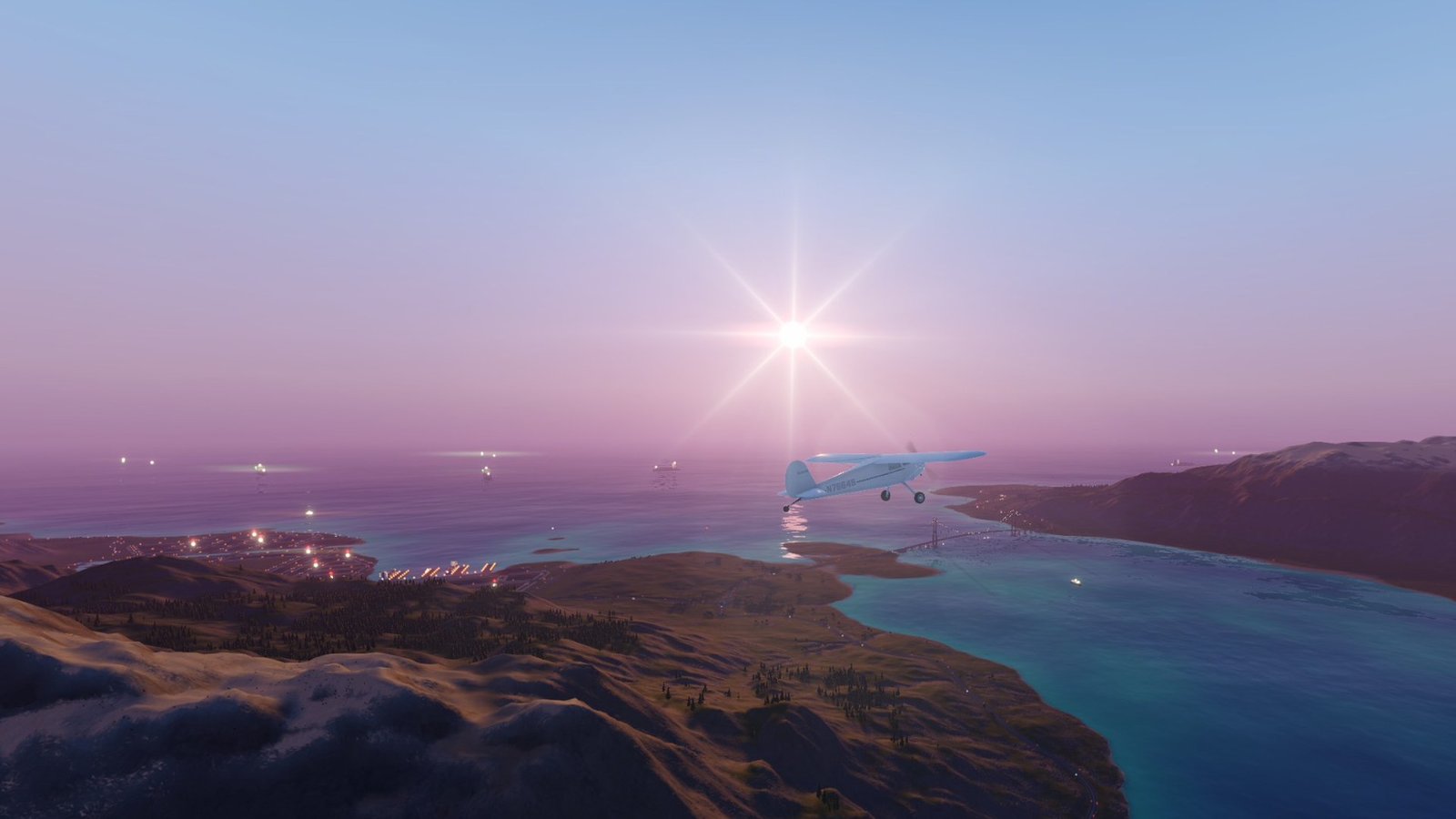
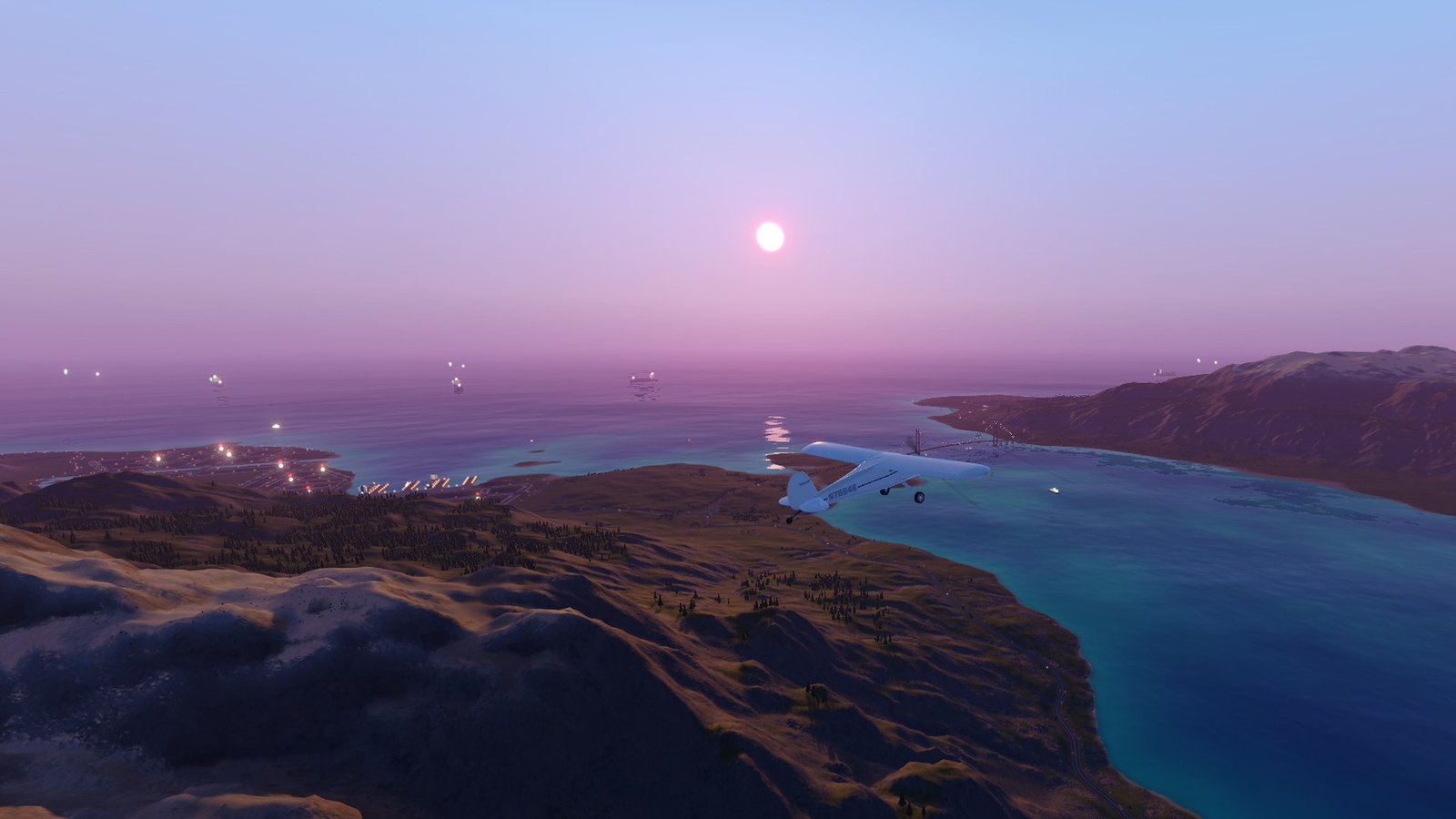
Better-looking SimplePlanes 2: true object motion blur (spinning props and fast crafts blur, turning the camera doesn't), temporal anti-aliasing, sharpening, better bloom, sun and anamorphic lens flares, colour grading, subtle depth of field, higher-quality ambient occlusion and more distant detail. Pick a preset or tune each effect. Off puts everything back exactly as the game had it.
Features
Presets: Off (the game's graphics), Crisp, Cinematic, or Custom. Changing any setting switches to Custom.
Crisp Cinematic Anti-aliasing TAA SMAA, high quality Sharpen 0.8 0.5 Better bloom on on Motion blur – objects only, 35%, high quality Sun / anamorphic flares – 50% / 0.3 Warmth / vignette – +0.2 / 30% Depth of field – on, f/4 (subtle) Ambient occlusion – highest LOD bias – 3 Anisotropic filtering forced on forced on - Object motion blur: uses URP's own motion blur with per-object motion vectors. Three modes:
- Objects Only: only things that really move blur: crafts flying past you, cars, other crafts' propellers. The world never blurs from camera movement, and the craft the camera follows (normally yours) stays sharp.
- Camera And Objects: also blurs the ground rushing past as you fly. Turning, orbiting or looking around with the camera still doesn't blur the picture (adjustable with Camera Turn Blur). In cockpit view, the cockpit stays sharp and the world blurs as the craft rolls.
- Camera Only: cheapest, but blurs the whole picture from camera movement, your own craft included.
- Blur is skipped for a frame when the world recentres itself (floating origin), so there are no flashes.
- Anti-aliasing: TAA (with quality and sharpening) or SMAA at its highest quality. TAA turns MSAA off while it's on, because the two can't run together. TAA can't run on a camera that has other cameras layered on it, and SP2's main flight camera does, so in most views it falls back to the game's own anti-aliasing setting with its MSAA kept on (the status says why). Changing the anti-aliasing choice gives every camera another try.
- Image (Beautify): sharpening, flicker-free higher-resolution bloom, anamorphic flares, sun flares, tonemapping (ACES, AGX…), warm/cool grading, vignette, eye adaptation, autofocus depth of field. The game's brightness, contrast, saturation and bloom strength sliders keep working.
- Detail: ambient occlusion quality (High/Highest, when AO is on in the game settings), sun shadow map resolution, LOD bias and forced anisotropic filtering.
Usage
Show usageHide usage
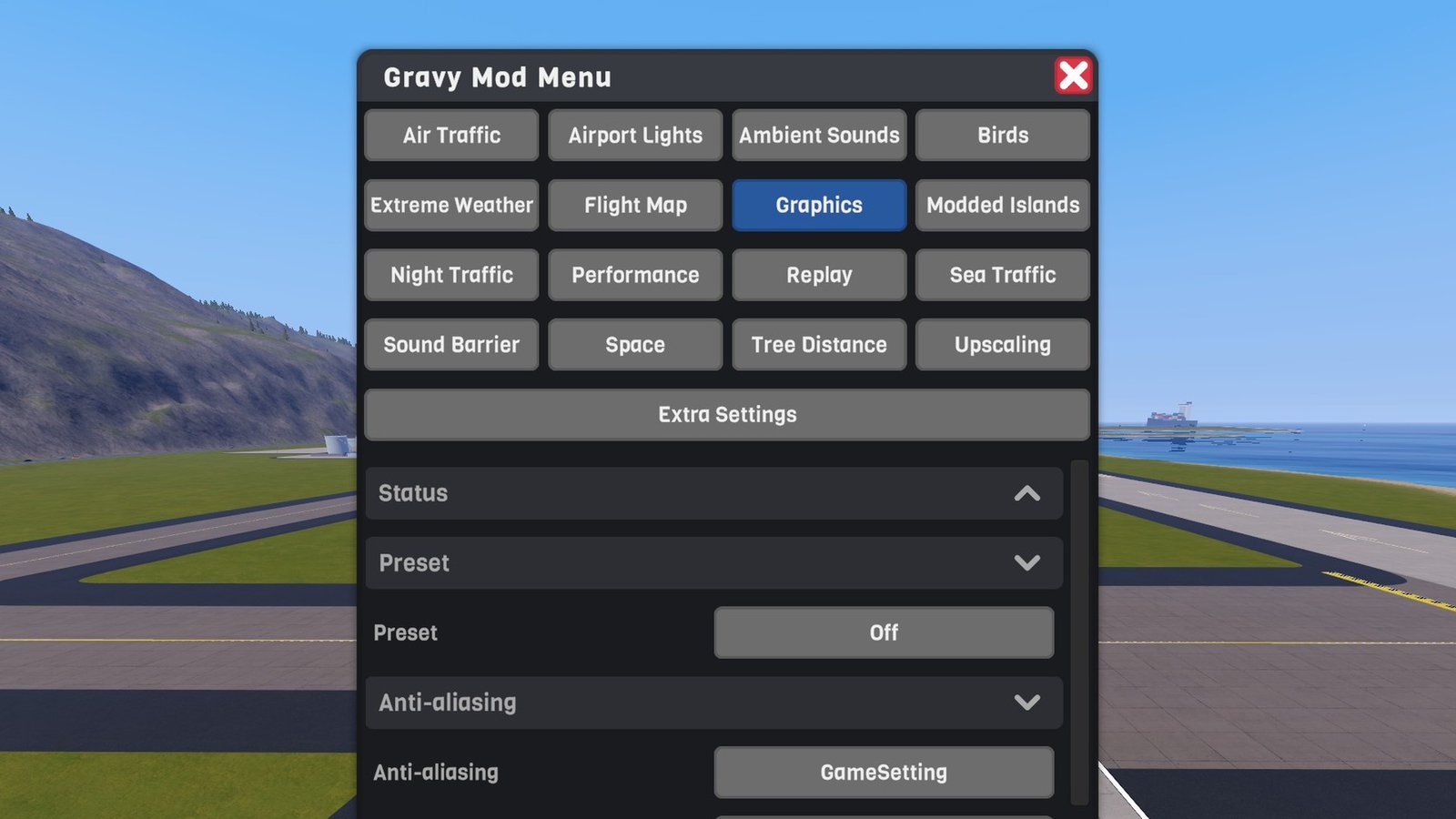
Settings and the live status live in the Gravy Mod Menu (Graphics tab) if that mod is installed. Without it, edit the .cfg file. Changes apply immediately. The status shows the anti-aliasing actually in use, the motion blur state, LOD bias and shadow map size.
 (open larger)
Multiplayer
Show multiplayerHide multiplayer
Experimental online. This mod runs in multiplayer, but it still has bugs there that aren't fixed yet. It works best in single player for now.
Local only. Rendering only: no craft, physics or network state is touched, so nothing changes for other players, and they don't need the mod. LOD bias only changes what's drawn, not colliders.
Settings
Show all settingsHide settings
| Section | Setting | Default | Notes |
|---|---|---|---|
| Preset | Preset | Off | Off / Crisp / Cinematic / Custom |
| Anti-aliasing | AntiAliasing | GameSetting | GameSetting / TAA / SMAAHigh |
| Anti-aliasing | TaaQuality | High | |
| Anti-aliasing | TaaSharpening | 20% | |
| Motion Blur | MotionBlur | Off | Off / ObjectsOnly / CameraAndObjects / CameraOnly |
| Motion Blur | Intensity | 35% | |
| Motion Blur | Quality | High | Low / Medium / High |
| Motion Blur | CameraTurnBlur | 0% | CameraAndObjects/ |
| Motion Blur | CameraOnlyClamp | 0.05 | Longest streak in Camera Only mode |
| Image | Sharpen | 0 | 0 = the game's value. Above about 0.8, distant edges look jagged. |
| Image | BetterBloom | false | |
| Image | AnamorphicFlares | 0 | |
| Image | SunFlares | 0% | |
| Image | Tonemap | GameDefault | Linear / ACESFitted / ACES / AGX |
| Image | Warmth | 0 | −1 cool … +1 warm |
| Image | Vignette | 0% | |
| Image | EyeAdaptation | false | |
| Image | DepthOfField | false | |
| Image | DofAperture | 4 | f-stop; higher = subtler |
| Detail | AmbientOcclusion | GameDefault | High / Highest |
| Detail | ShadowResolution | GameDefault | 2048 / 4096 / 8192 |
| Detail | LodBias | 0 | 0 = the game's 2 |
| Detail | Anisotropic | false |
Known limitations
Show known limitationsHide known limitations
- Camera movement still blurs while TAA is actually running: TAA needs the true camera motion. Use SMAA High with motion blur (as Cinematic does).
- In Objects Only mode your own craft's propellers don't blur either (the whole followed craft is kept sharp).
- Things drawn without motion vectors (particles, smoke, glass) don't get object motion blur.
- Sun flares follow the scene's main light, which is the moon at night.
- Some effects may have been left out of the game's build of Beautify. If one does nothing in game, that's why.
- If the Performance mod is also installed and both change the same effect, the setting from this mod wins while it's on. Switching either mod (or one of its settings) off puts back exactly what was under it: the game's value, or the other mod's value while that one is still on.
Requirements
Show requirementsHide requirements
- SimplePlanes 2 0.7.9
- BepInEx 5 (5.4.x, x64 Mono build) installed in the game folder. On Linux/Steam Deck with Proton, add
WINEDLLOVERRIDES="winhttp=n,b" %command%to the game's launch options.
The Gravy Mod Menu is recommended: most mods keep their in-game settings and status there. Without it, edit the .cfg files in BepInEx/config/.