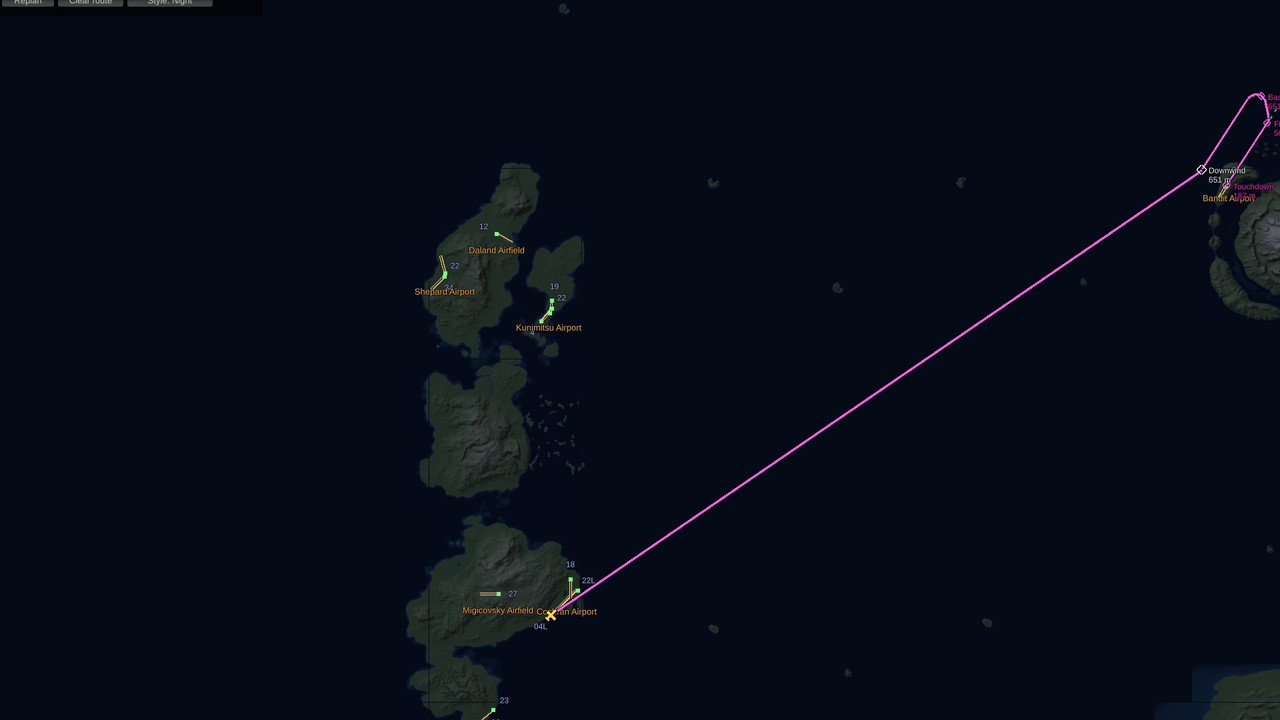
Flight Map
A minimap and a full map with approach routes, traffic and a route autopilot.
- Version
- Version 0.5.2
- Works with
- SimplePlanes 2 0.7.9
- Updated
- Category
- Gameplay
- Online
- Local onlyExperimental: still has bugs in multiplayer
- Needs
- BepInEx 5. The Gravy Mod Menu is recommended.
What it does
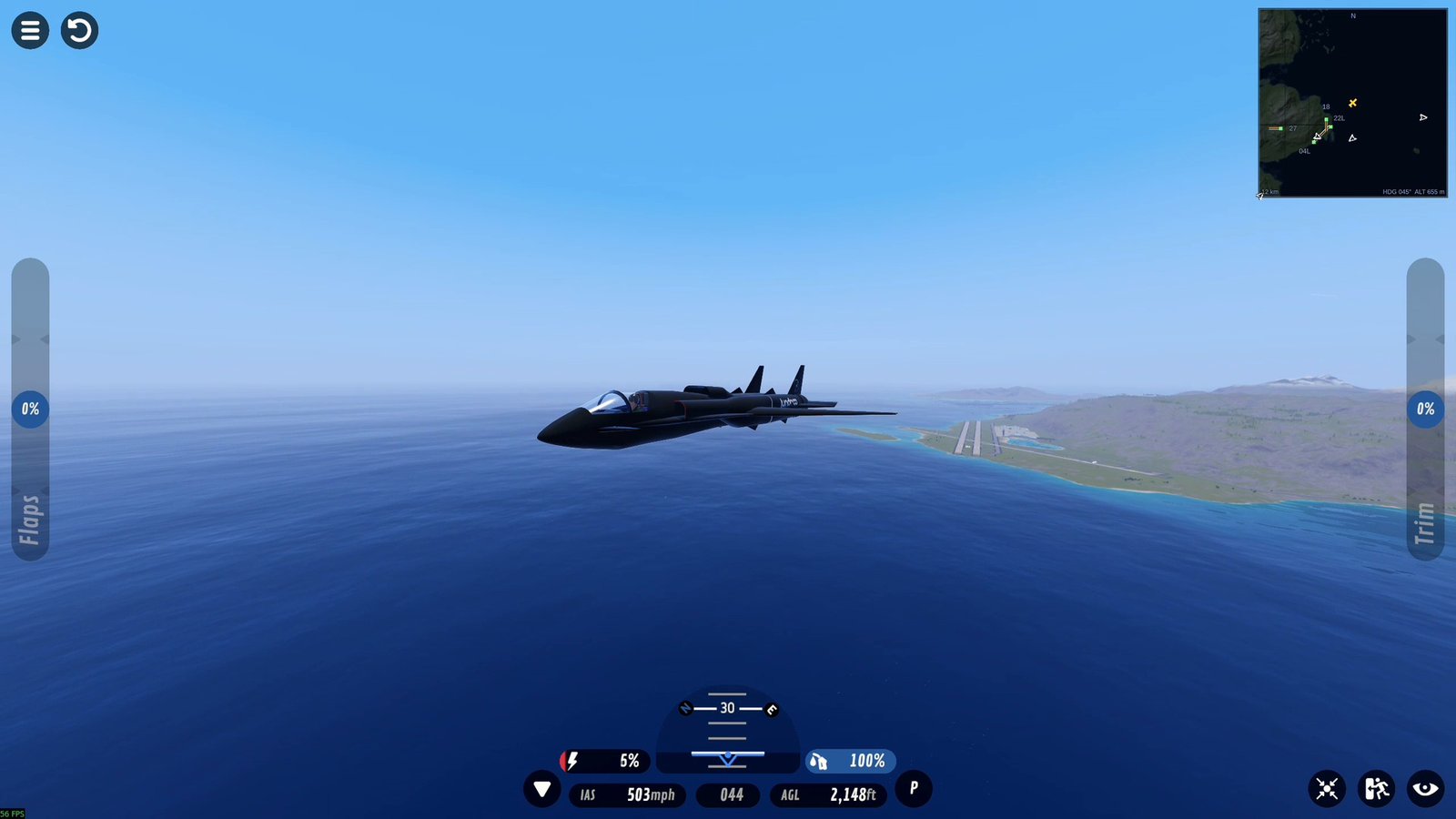
A minimap and a full-screen map for SimplePlanes 2, with landing approach planning, other traffic, three map styles and a route autopilot.
 (open larger)
Features
- Minimap in the corner showing terrain, runways, other crafts and your heading. Zoom in and out.
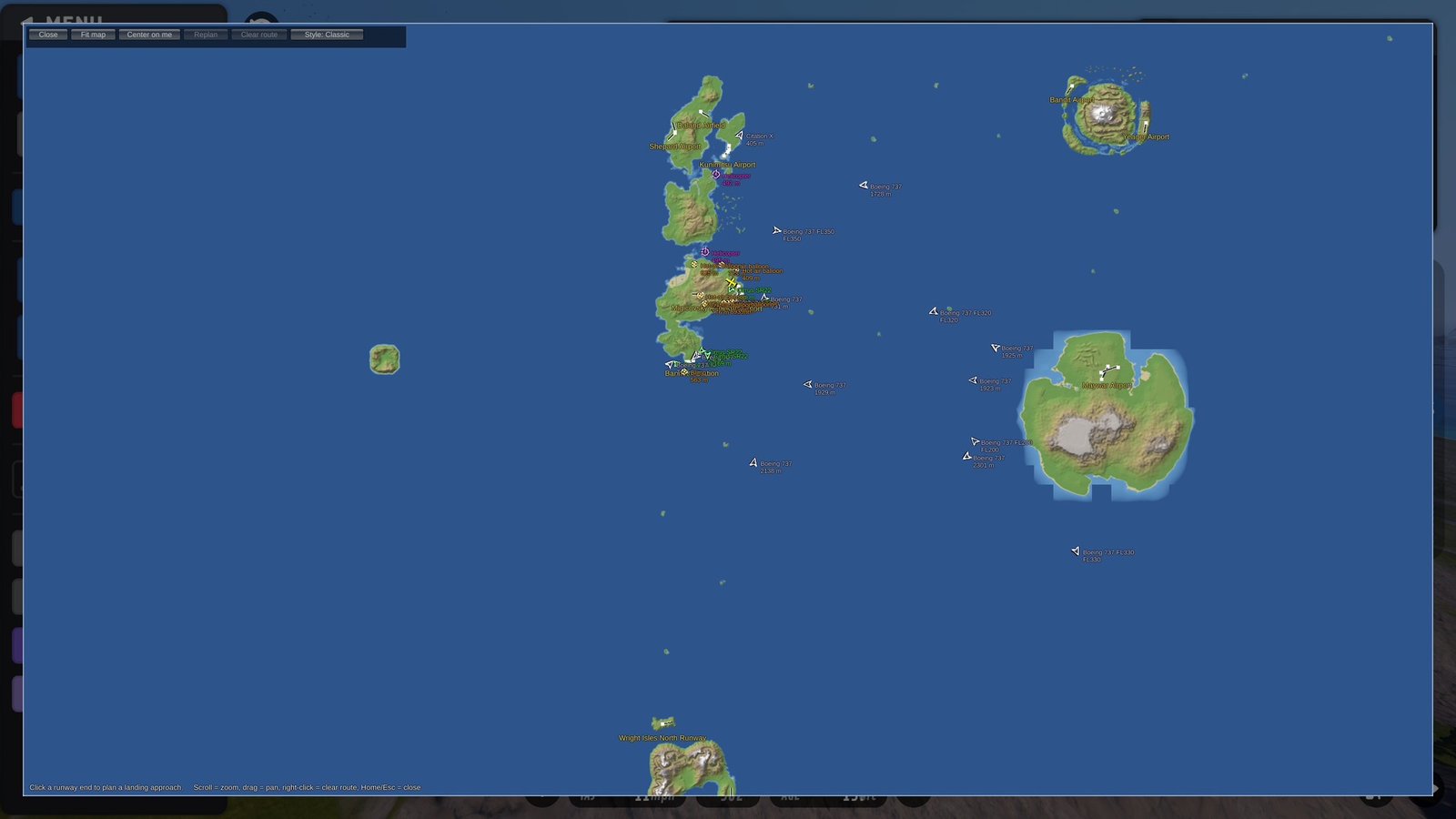
- Full map that you can pan (drag) and zoom (scroll).
- Shows every island, including ones added by other mods (e.g. the Classic Islands). Islands that haven't loaded yet are read in the background, and the map is saved, so it's complete from the start of your next flight.
- Runways come from the game's start locations, including ones added by other mods.
- Click a runway to plan an approach sized for your craft's speed.
- The route and your progress are drawn on the map. Right-click clears it.
- Smooth routes. Legs are joined by constant-radius turns sized from your speed and a gentle bank angle (25° by default), so every turn on the route is one you can actually fly. The route is drawn curved on both maps.
- Guidance readout under the minimap while a route is active:
- before the final approach: the next waypoint, a heading to steer that follows the turns, and how far off track you are;
- on final: centreline and glide slope, with a small approach indicator.
Other crafts on both maps as small heading arrows, with optional name/altitude labels:
- other multiplayer players (blue), at any range like the game's own air-to-air display (optionally limited with Other Players Range);
- AI aircraft (orange);
- Air Traffic airliners, overflights, business jets and turboprops (white). Overflights are labelled with their flight level (e.g. FL230) instead of an altitude in metres;
- Air Traffic light aircraft (green, smaller arrows), the blimp and hot-air balloons (yellow rings);
- Air Traffic helicopters (magenta rotor symbol);
- parked crafts nobody is flying, and Air Traffic's parked aircraft (grey, off by default).
Air Traffic's lightweight aircraft aren't crafts, so they're read from its public traffic list. That works without any setup when both mods are installed; without Air Traffic, the map simply shows crafts as before.
Map styles:
- Classic is the original look and the default.
- Night is a dark palette that is easy on the eyes when flying at night.
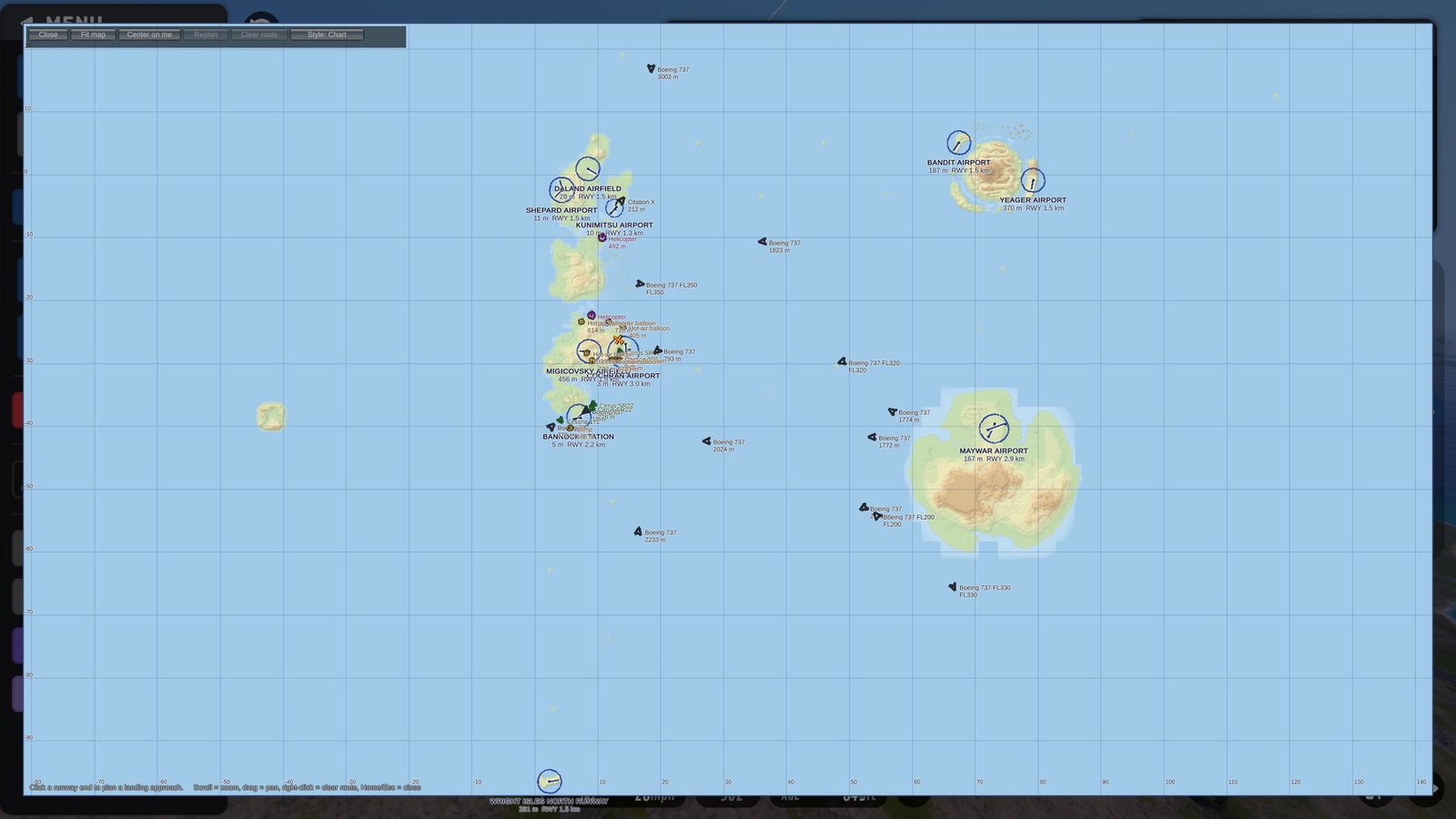
- Chart looks like an aeronautical chart: muted elevation tints, contour lines, airport symbols with name, elevation and runway length, and a kilometre grid.
Switch style with the button on the full map or in the settings.
- Easter eggs. Optional map markers for the Classic Islands easter eggs, when those mods are installed and on. Switch them off if you'd rather find them yourself. Neither mod is needed; without them there's simply no marker.
- Route autopilot (see below).
 (open larger)
 (open larger)
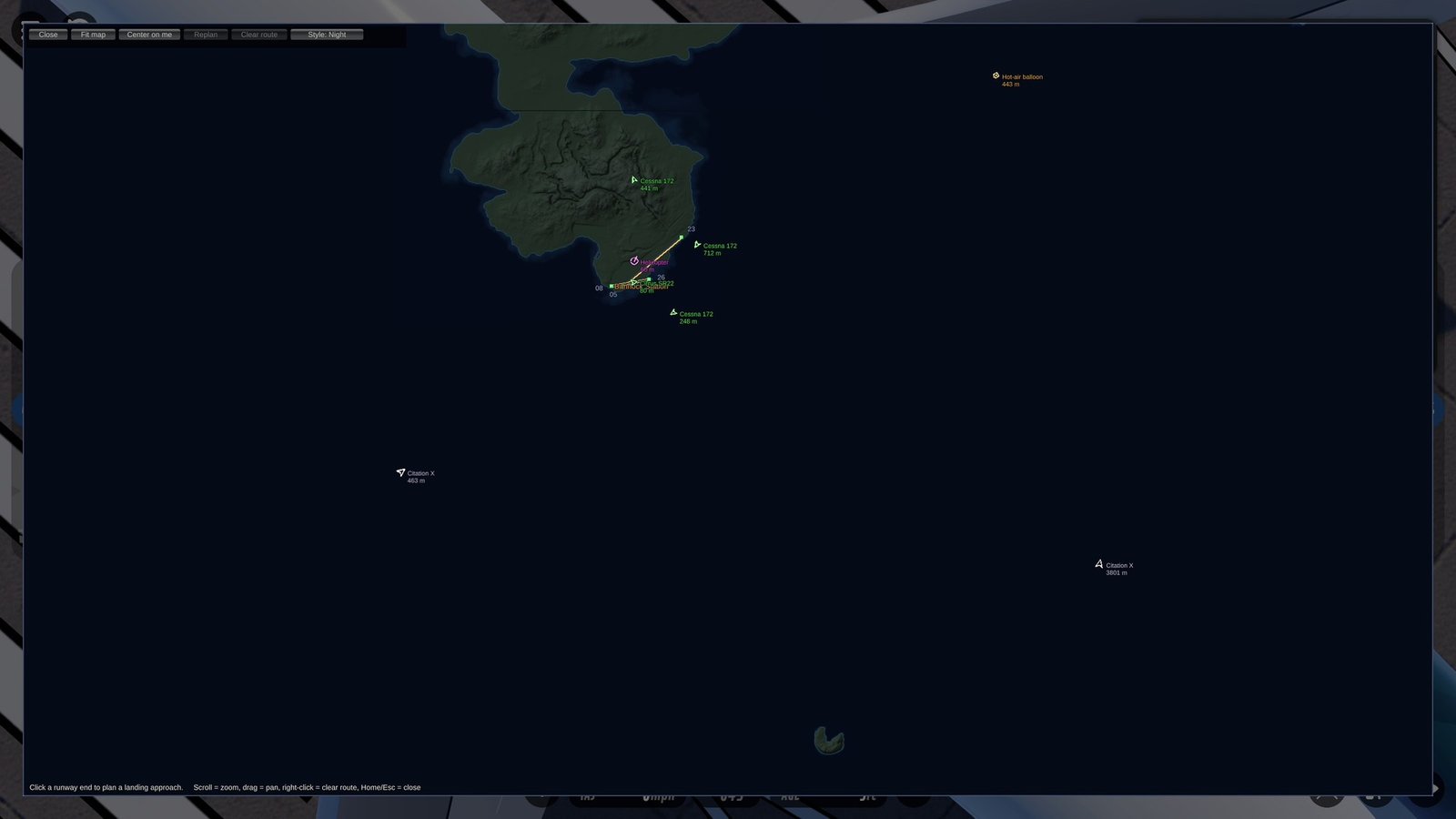 (open larger)
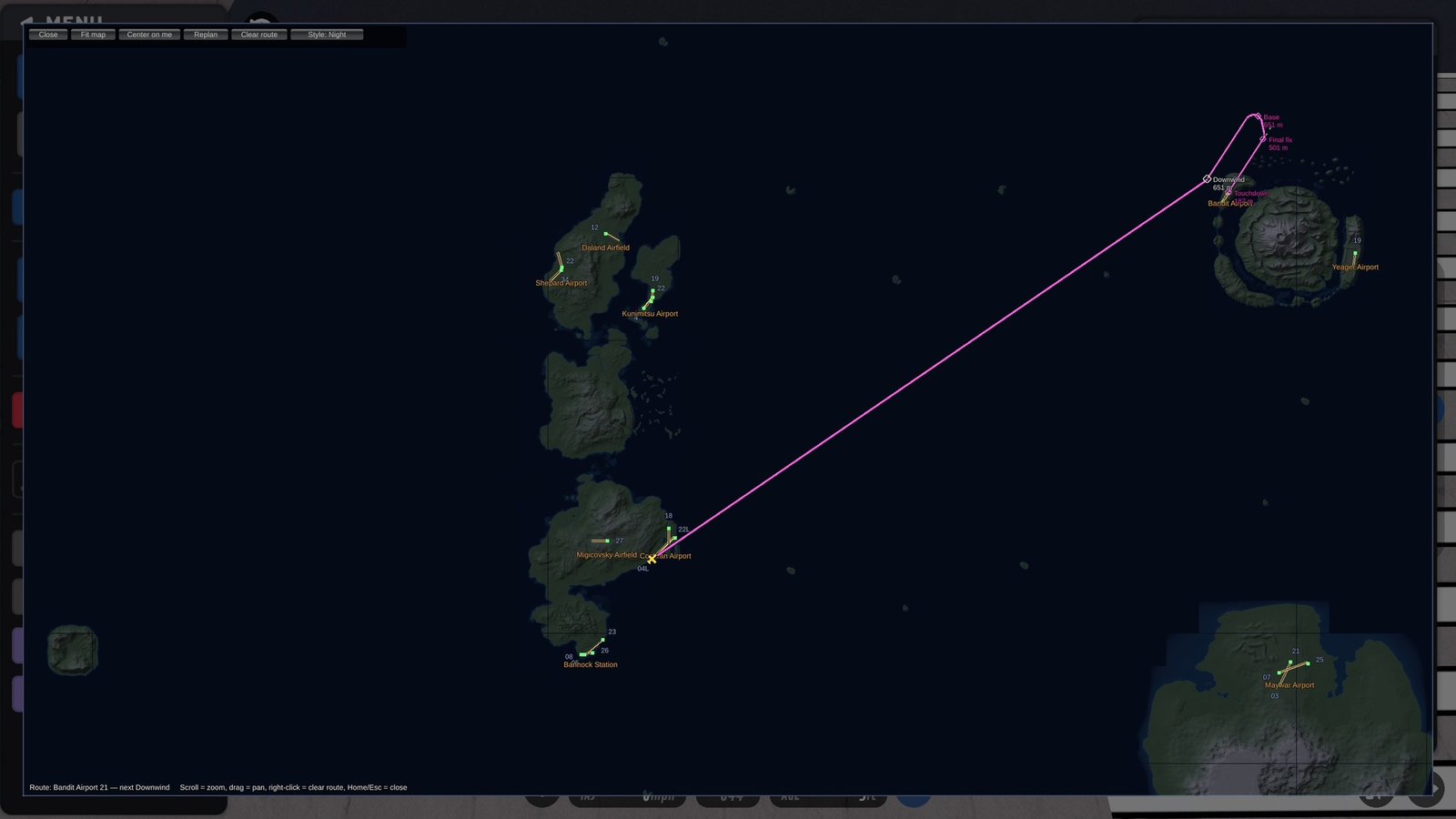 (open larger)
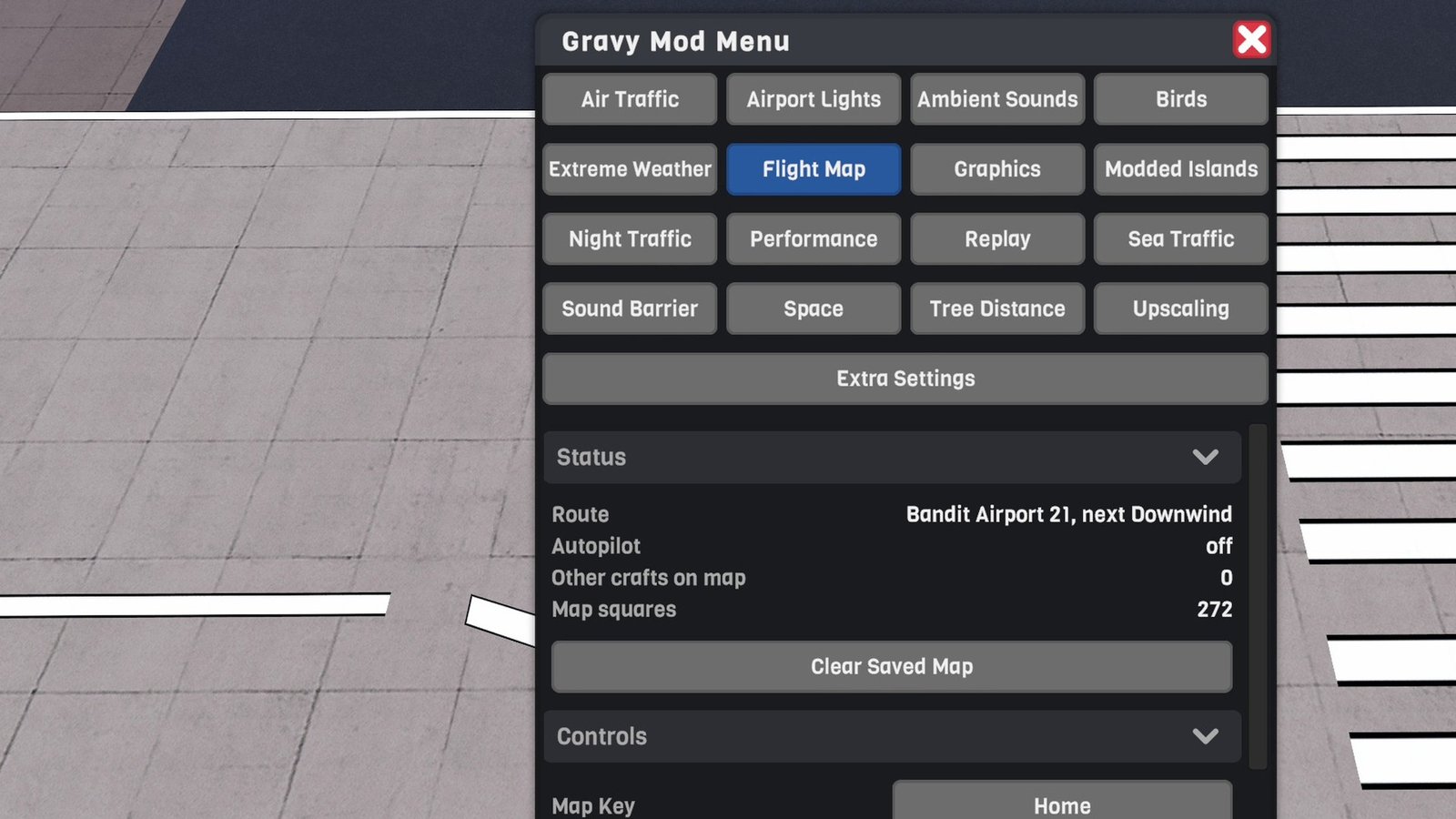 (open larger)
Route autopilot
Show route autopilotHide route autopilot
It steers the route and holds you level at the altitude where you engaged it; you fly the throttle.
Press the game's autopilot key (Enter by default) or the cockpit autopilot button.
- With a route planned:
- It steers your craft along the route: smooth turns and back onto the line if you drift.
- It holds you level at the altitude where you engaged it. To climb or descend, pitch by hand. Let go and it holds the new altitude. It doesn't touch the throttle.
- It hands control back at the final approach fix, where the straight-in final begins, with an on-screen message.
- Without a route: the key works exactly as in the normal game (wing leveling / altitude hold).
- Press the key again at any time to disengage. All controls are yours again at once.
A typical flight: climb to your cruising altitude, set the throttle, and press the autopilot key. It steers you along the route at that altitude. When it's time to descend, push the nose down yourself while it keeps steering, and let go at the new altitude.
The guidance panel shows the autopilot state:
- AP ROUTE with the held altitude (hold 8750 m; levelling off while it settles, alt: you while you pitch), how far you are off the line, and the target speed if you turned on Manage Throttle;
- AP APPROACH (Autoland only);
- a hint that the autopilot key will fly the route.
A small ring on the map shows where the autopilot is steering.
Details:
- Tracking. It steers to stay on the drawn line: it flies the bank each turn needs, corrects any drift off the line, and joins the line at no more than 30°.
- Holding level (Altitude Hold = Hold Level, the default). It flies the elevator itself to keep you at the altitude where you engaged it, smoothly:
- it damps out the slow up-and-down swing (phugoid) many crafts fly into hands-off, and finds the craft's trim by itself, so an untrimmed craft no longer climbs away;
- corrections are gentle: at most 2–6 m/s up or down (more at higher speed), eased in at about 0.15 g, and its gains adapt to speed and air density, so it isn't twitchy at 400 m/s nor weak when slow;
- if you engage while climbing or descending faster than 5 m/s, it first levels off smoothly, then holds the altitude where it levelled ("Autopilot: holding … m");
- it never pulls the nose up near the stall.
- Changing altitude. Your stick works as normal while it's engaged, with no delay. While you pitch, it keeps only the trim it found. Let go, and it levels off and holds the altitude reached.
- Off (pilot only). Set Altitude Hold to Off (pilot only) to have it only steer: your pitch input (and trim) goes straight through, plus a little back pressure while it's banked in a turn.
- Can't hold level. If the craft needs more trim than the autopilot may use (e.g. a craft badly out of trim at full throttle), it says so on screen. Trim the craft or change the throttle.
- Throttle. Never touched by default. Turn on Manage Throttle to have it hold Cruise Speed (the planned speed by default) with slow, gentle throttle changes, never below Min Throttle.
- Bank angle. Never more than Max Bank Angle (30° by default). The rudder is left centred.
- Terrain (safety). With Terrain Avoidance on (the default), it checks the terrain under the route for the next ~25 s. If high ground would come within 100 m of your flight path, it climbs steadily (4–10 m/s) until there is 150 m again, then holds the new altitude, and the panel says terrain climb. Your own pitch input overrides it. It does nothing over the sea or with plenty of clearance. It doesn't use the game's AI terrain avoidance, which climbs to 2500 m above any land.
- Gear and VTOL. The gear key and the VTOL control stay yours while it's engaged.
- Ground. It doesn't engage on the ground: take off first.
- Hand-back. It also disengages if you clear the route, get into another craft, or the craft is badly damaged. If you plan a new route while it's engaged, it follows the new one. Every disengage is written to the BepInEx log with its reason (
Route autopilot off: …). - Leaving the seat. If you stand up (e.g. with Walkable Craft), it keeps steering and holding the altitude (with Off (pilot only), there is then no pitch input at all). Press the autopilot key to disengage.
- Multiplayer. It only ever flies your own craft, just like the game's own autopilot (see Multiplayer below).
Autoland (experimental, off by default)
With Autoland on, the autopilot doesn't hand back at the final fix. Instead it flies the final approach:
- down the glide slope (with the same smooth elevator control as the level hold) and centreline;
- landing gear down;
- with Manage Throttle on, slowing to the approach speed over the last 4 km before the fix.
On the route it holds the altitude you chose, so descend to about the final fix's height (shown next to it on the map) before you get there: pitch down, and let go at that height.
It hands back 15 m (50 ft) above the ground so you can flare and land yourself. It also hands back early ("unstable approach, go around") if it is well off the centreline or glide slope below 300 m.
It does not flare, touch down or brake for you. The game's AI landing mode is made for its own traffic: it only works on the game's built-in landing paths, doesn't control the player's throttle, and removes the craft once it has stopped. Every craft also needs different speeds, flaps and flare. So the last few metres stay with you.
Controls (default)
Show controls (default)Hide controls (default)
| Key | Action |
|---|---|
| Home | Open/close the full map |
| End | Show/hide the minimap |
| Page Up / Page Down | Zoom the minimap |
| Esc | Close the full map (without opening the game's menu) |
| Autopilot key (Enter) | With a route: steer the route / disengage. Without: the game's normal autopilot |
The map keys do nothing while you type in the multiplayer chat (or any other text box), while a dialog is open, or while the dev console is open.
Keys can be rebound in the Gravy Mod Menu (Flight Map tab) or in the .cfg. The Flight Map tab also shows the current route, autopilot state and how many other crafts are on the map. Its Clear Saved Map button forgets the saved map, e.g. after moving an island in the Classic Islands settings. The map is then rebuilt from what loads.
Multiplayer
Show multiplayerHide multiplayer
Experimental online. This mod runs in multiplayer, but it still has bugs there that aren't fixed yet. It works best in single player for now.
Local only. Nothing is sent to other players, it works the same whether you host or join, and other players don't need the mod.
- Route autopilot: only ever flies your own craft, like the game's own autopilot, and only where the game allows its autopilot.
- Other players on the map: shown at any range by default, like the game's own air-to-air display. Other Players Range limits how far away they're shown, and Show Players hides them all.
- Air Traffic: its traffic only exists on your own computer, so the map shows your own traffic; other players' traffic isn't on your map.
- Brown Pearl marker: not shown when you join someone else's server, where the ship doesn't exist.
Settings
Show all settingsHide settings
| Section | Setting | Default | Notes |
|---|---|---|---|
| Controls | MapKey, MinimapKey, MinimapZoomInKey, MinimapZoomOutKey | Home, End, PageUp, PageDown | |
| Minimap | Size | 260 px | |
| Minimap | Range | 6000 m | Distance from you to the minimap edge |
| Route | ShowGuidancePanel | true | |
| Route | MinPlanningSpeed | 60 m/s | Speed assumed when planning while slower (e.g. on the ground) |
| Route | TurnBankAngle | 25° | Sizes the route's turns; lower = wider, gentler turns |
| Map | MetresPerPixel | 12 | Map detail, 8–40 (lower is sharper but uses more memory); applies next flight |
| Map | PrefetchIslands | true | Read not-yet-loaded islands in the background so they're on the map |
| Map | SaveMapCache | true | Keep the map between sessions (BepInEx/cache/FlightMap) |
| Map Style | Style | Classic | Classic, Night or Chart |
| Map Style | ContourInterval | 100 m | Chart style contour spacing (every 5th line darker) |
| Traffic Display | ShowPlayers / ShowAi / ShowAirliners | true | Which other crafts to show (airliners include Air Traffic's overflights, bizjets and turboprops) |
| Traffic Display | PlayerRange | 0 (all) | Only show other players (and crafts they left parked) within this distance of you; 0–50 km, 0 = no limit. Show Players hides them all |
| Traffic Display | ShowSmallAircraft | true | Air Traffic light aircraft, the blimp and balloons |
| Traffic Display | ShowHelicopters | true | Air Traffic helicopters |
| Traffic Display | ShowParked | false | Crafts nobody is flying, and Air Traffic's parked aircraft |
| Traffic Display | Labels | NameAndAltitude | Off, Name, Altitude or NameAndAltitude (full map) |
| Traffic Display | LabelsOnMinimap | false | |
| Easter Eggs | ShowEasterEggs | true | Mark Cthulhu (needs the Classic Islands Cthulhu mod, switched on) |
| Easter Eggs | ShowBrownPearl | false | Mark the Brown Pearl's patrol area (needs the Classic Islands Brown Pearl mod; not shown when you join someone else's server, where the ship doesn't exist) |
| Autopilot | RouteAutopilot | true | Autopilot key steers along the planned route |
| Autopilot | AltitudeHold | Hold Level | Hold Level = hold you level at the engage altitude (pitch to change it). Off (pilot only) = steering only |
| Autopilot | ManageThrottle | false | Hold Cruise Speed with gentle throttle changes (off = the throttle is yours) |
| Autopilot | CruiseSpeed | 0 | With ManageThrottle: 0 = the speed the route was planned for |
| Autopilot | MinThrottle | 30% | With ManageThrottle: lowest throttle it uses |
| Autopilot | MaxBankAngle | 30° | |
| Autopilot | GroundAvoidance | true | Climb if terrain ahead comes within 100 m of your flight path |
| Autopilot | Autoland | false | Experimental: fly the approach down to the hand-back height |
| Autopilot | ApproachSpeed | 0 | 0 = automatic (70% of cruise, 45–90 m/s) |
| Autopilot | HandBackHeight | 15 m | Autoland hands back at this height above the ground |
| Debug | VerboseLogging | false | |
| Debug | AutopilotDiagnostics | false | Log the autopilot's commands and the craft's response every 2 s while engaged |
Known limitations
Show known limitationsHide known limitations
- Craft dependent. The autopilot steers with the ailerons and holds level with the elevators through the game's AI controls. Very unusual crafts (VTOLs, helicopters, crafts without normal control surfaces or with pitch on other controls) may wander. With Altitude Hold set to Off (pilot only), an untrimmed craft drifts up or down just as it would hands-off.
- Updating. Coming from a pre-release build, some settings are changed once to the new defaults, even if you had changed them: Altitude Hold is set to Hold Level, Manage Throttle and AutopilotDiagnostics are switched off. Change them back in the settings if you want. The old CruiseAltitude setting is removed from the file. A new install keeps the defaults and logs nothing about this.
- Far islands and memory. To put islands on the map before they load (Map Far Islands), the game's low-detail terrain for each one is loaded in the background, one at a time. The game keeps that terrain in memory until it next frees unused assets (e.g. when you leave the flight). It only happens once per island: the heights are saved with the map, so later flights skip them. Turn Map Far Islands off if memory is tight.
- Game updates. If a game update changes something the map reads from the game's internals, only that part switches off (with one line in the BepInEx log), e.g. reading far islands in advance. The map, runways, routes and the autopilot keep working.
- Airliner colour. Air Traffic airliners show in their own colour only on the machine running the traffic (the host); see Multiplayer above.
- Style change. Switching map style re-colours the map in the background. Nearby areas update first, and the rest follows over a few seconds.
- Easter egg markers. They follow the Cthulhu and Brown Pearl mods' settings within about 2 s. Those mods only add (or move) their easter egg on the next flight, so right after you switch one on or move it, the marker can show where it will be rather than where it is. The Brown Pearl marker is its patrol area, not the ship itself, and stays after the ship is sunk.
- Moved islands. If an island is moved, its old position stays on the saved map until you use Clear Saved Map.
Requirements
Show requirementsHide requirements
- SimplePlanes 2 0.7.9
- BepInEx 5 (5.4.x, x64 Mono build) installed in the game folder. On Linux/Steam Deck with Proton, add
WINEDLLOVERRIDES="winhttp=n,b" %command%to the game's launch options.
The Gravy Mod Menu is recommended: most mods keep their in-game settings and status there. Without it, edit the .cfg files in BepInEx/config/.